Your day in PufferPOS: orders, shifts and closing the cash drawer
Start a shift
Orders belong to a shift, so the cashier starts one first: open the top menu and choose “Start a new shift”. Each shift records who worked, the orders taken and the cash handled.
Take orders
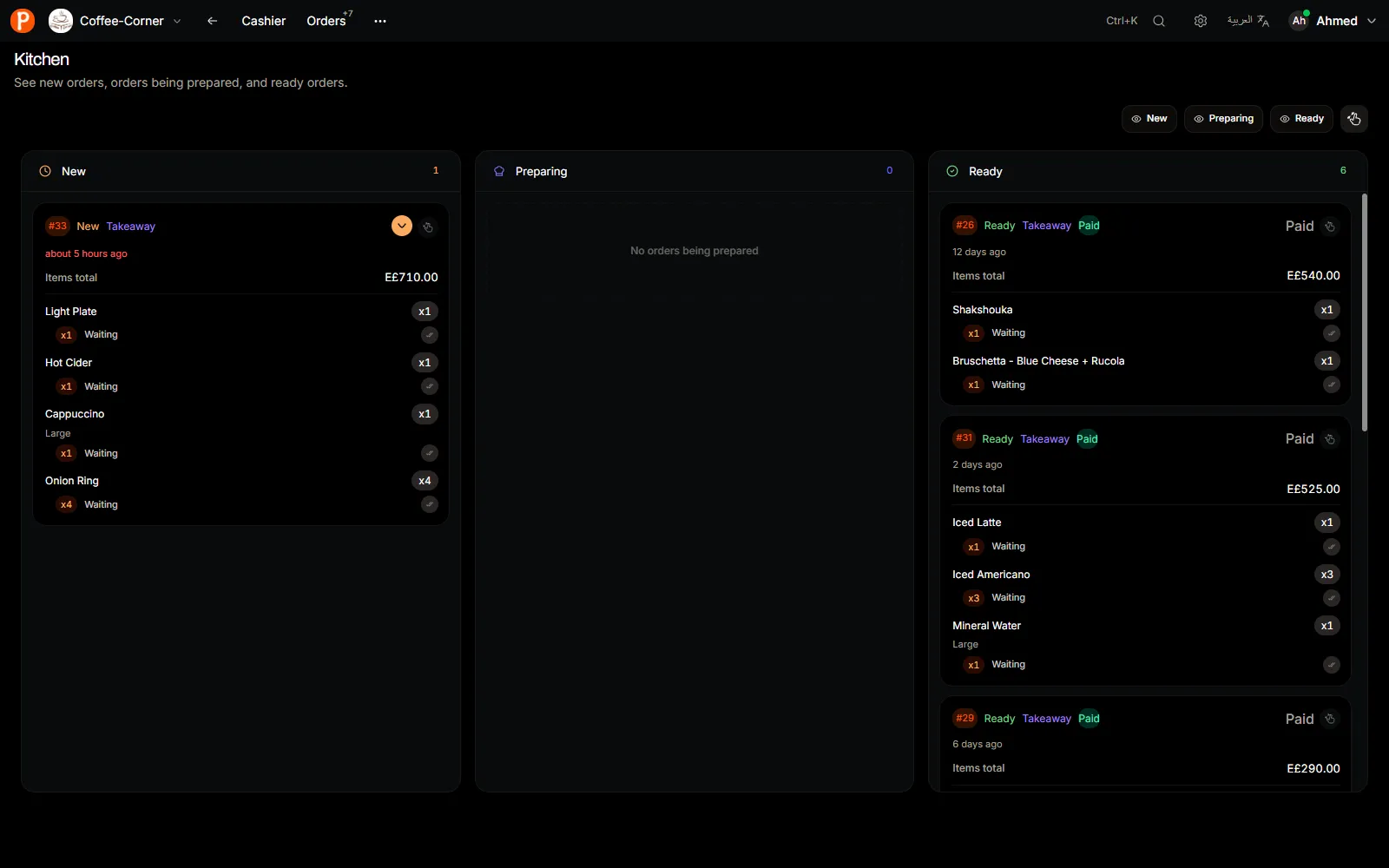
- Takeaway: add items, take payment, done.
- Dine in: choose the table, add items, and keep the order open. Add more items as the table orders, then take payment when they leave.
- Move a table: if guests change seats, move the open order to the new table.
- Kitchen: orders appear on the Kitchen screen and move through New, Preparing and Ready.
Put the Kitchen screen on a cheap tablet near the bar or kitchen. It updates by itself.
Record cash in and out
When cash leaves or enters the drawer for something other than a sale, like buying milk or adding change in the morning, record it as a cash movement with a short note. That keeps the drawer count honest.
Close the shift
Count the drawer
Choose Close shift and type the cash you actually counted.
Compare
PufferPOS shows the cash expected in the drawer: opening cash, plus cash sales, plus cash in, minus cash out. The difference appears as you type.
Close and review
The shift report keeps sales by payment method, cash movements and the difference. Owners see every shift in Dashboard → Shifts.
/dashboard/shifts
Check the day
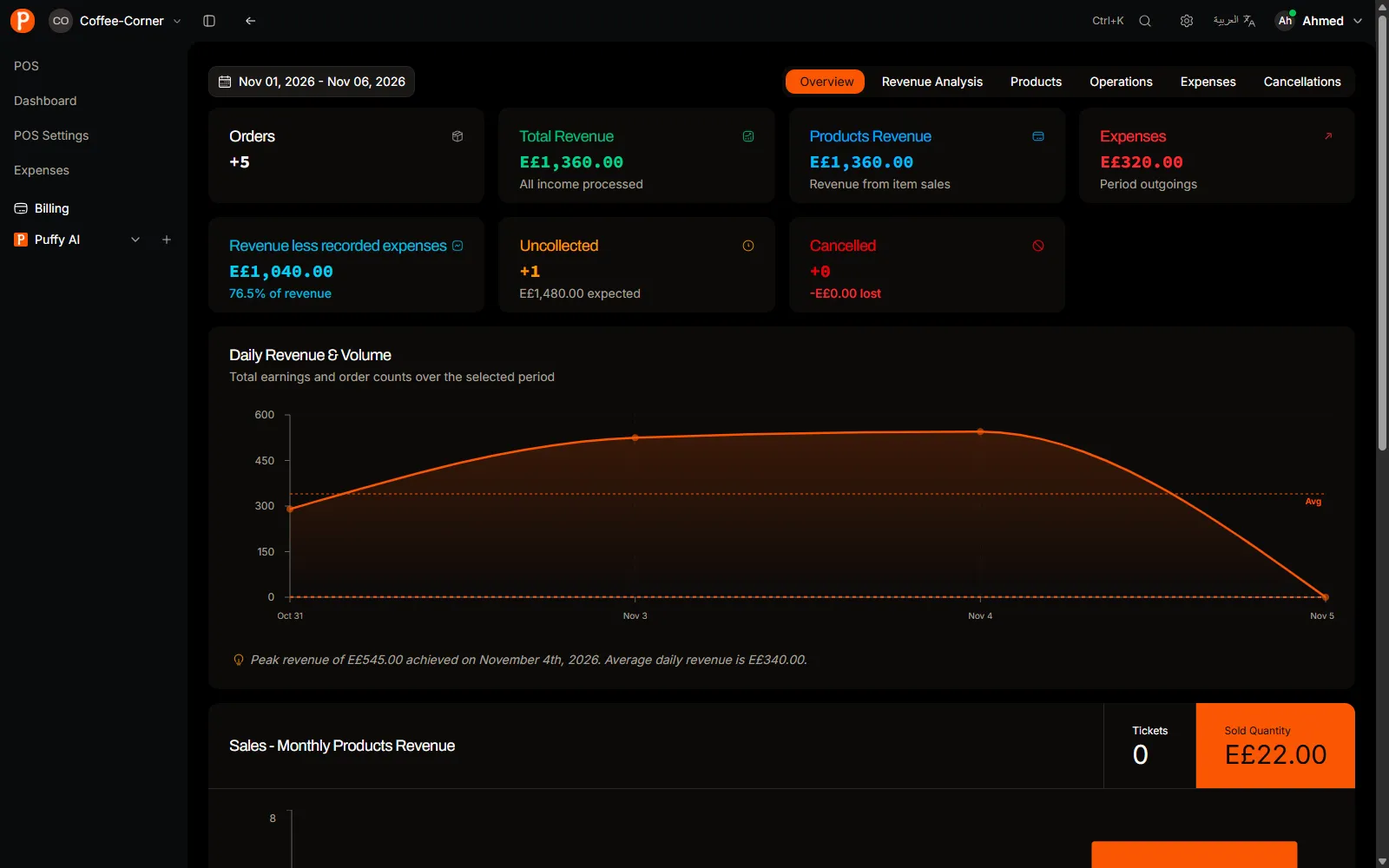
The Dashboard shows today’s sales, top items and cancelled orders. On Growth you can also ask Puffy, the AI assistant, questions like “How much did we sell today?” and get an answer from your recorded data.